Remove an object or a person from a photo
To remove an object or a person from a photo, paint over it and press Erase. AI fills what you painted with what would plausibly be behind it, and the rest of your photo stays as it was.
Free account · 20 free credits. Sign in or sign up
Drop a picture here
PNG, JPG or WebP · one file
or paste it here (Ctrl+V)
Nothing is uploaded until you press Erase.
A drawn cafe scene (cartoon shapes, not a photo of anyone). The person on the right was painted over with the brush and erased by the code this page runs; everything outside the painted area is kept as it was. 1600 × 1200 px. A recorded run, not a mock-up.
How to remove an object or a person from a photo
- Drop, paste or choose a photo: JPG, PNG or WebP, up to 12 MB. It opens straight away, ready to paint on.
- Paint over what you want gone with the brush (small, medium or large), shadow included. A finger, a pen or a mouse all work, and Undo takes back a stroke.
- Press Erase. The price, 3 credits, is on the button, and it needs a free account. Compare before and after with the slider, then Download, or paint more and run again.
Before and after
Paint over the person on the right, press Erase, and the wall and table carry on behind them.
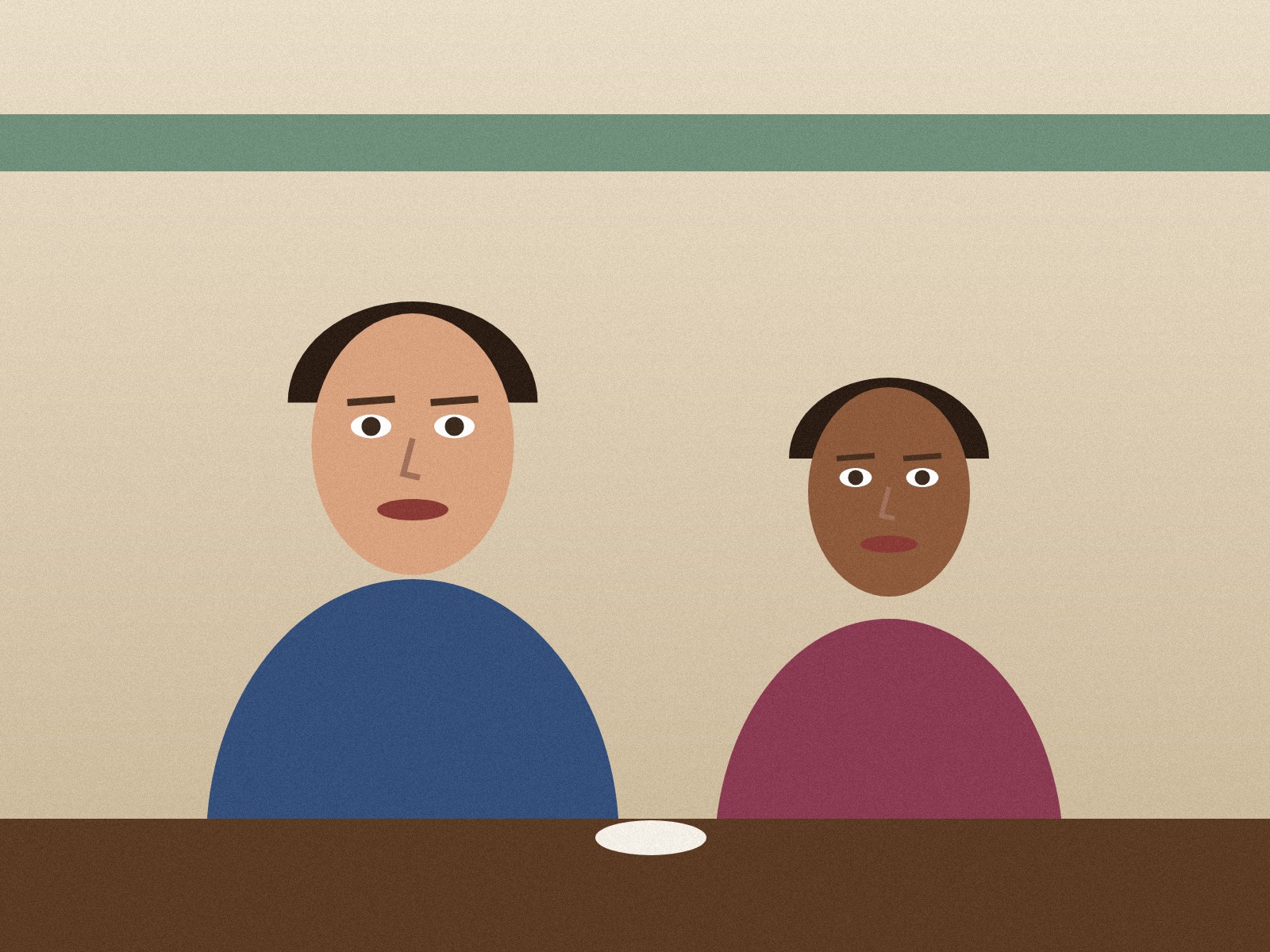 (opens the sample image in a new tab)
1600 × 1200 px JPEG two drawn people at a café table; the one on the right painted over with the brush
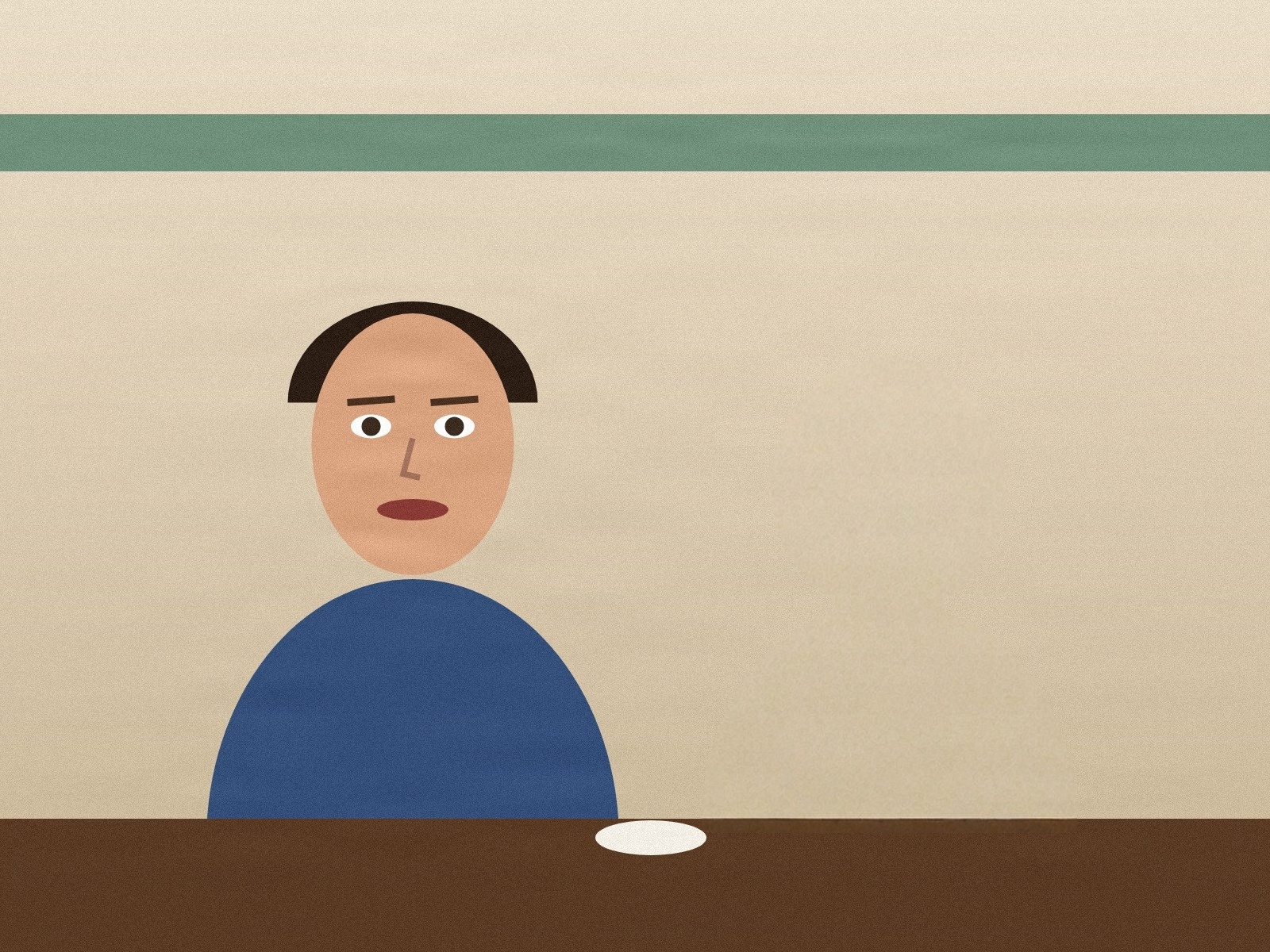 (opens the recorded result in a new tab)
1600 × 1200 px JPEG, same size as the original the painted person gone; the wall, the stripe and the table filled in behind them
What this tool does
Drop, paste or choose a photo and it appears straight away. Paint over whatever you want gone — a stranger in the background, a bin, a power line, a date stamp — with the brush (small, medium or large; a mouse, a pen or your finger all work), undo a stroke if you slip, then press Erase. The price is on the button before you press it. The photo and the painted area are sent through our servers to an AI model, which fills the painted area with what would plausibly be behind it; everything you did not paint is kept as it was. You get a before-and-after slider, a Download button, and "Paint more and run again" if something is left over. The result is labelled as AI-edited in its metadata (no visible mark), your photo is not used to train anything, and both are deleted from our servers after two hours.
If this image shows a real person, the result is an AI-manipulated image of that person. It is labelled as AI-edited in its metadata, and you are responsible for having their consent.
What is a magic eraser, and how does it work?
A magic eraser is a photo tool that removes whatever you paint over and fills the gap with what would plausibly be behind it. On this page you paint with a brush, the photo and the painted area go to an AI fill model, and only that area is filled in; the rest of the photo is kept as it was.
The fill is the AI's guess, not a recovery of what was really there. It carries on the wall, the sky, the sand or the table from the pixels around the gap, so it is most convincing when the thing you remove stands in front of a fairly plain or repeating background, and harder when the background is busy or the thing covers a big part of the photo.
- Cover the whole thing, including its shadow and any reflection. A little over the edges is fine.
- "Expand the area" under More options grows your painting by a few pixels before the fill (8 unless you change it), so outlines and soft edges go too.
- Undo takes back the last stroke. To rub paint off instead, tick "Unpaint" under More options.
- On a computer, the [ and ] keys make the brush smaller or bigger, and Ctrl or Cmd+Z undoes a stroke.
- If something is left over, press "Paint more and run again": your painting is kept, so you only add what was missed.
Is there a free way to remove objects from a photo?
Yes: many phones have an eraser built into the photo app, and several websites let you remove objects for free, some with a smaller download or their own logo on the free version. This page is not free. It costs 3 credits a photo and needs a free account; new accounts get 20 credits.
In return, a run that fails costs nothing, the result keeps the size you uploaded (up to 4,096 pixels on the long side) and no visible mark is added. A desktop photo editor gives you the most control, but removing something by hand with clone and heal tools takes practice.
| Compare | This page | A free online eraser | A desktop photo editor |
|---|---|---|---|
| Cost | 3 credits a photo, with a free account (new accounts get 20 credits) | Free to start, usually with a paid plan for more | Free and paid editors exist |
| How you mark what goes | You paint over it with a brush | Usually a brush; some find people or text for you | Clone and heal tools by hand; some editors have an AI fill |
| The result | The size you uploaded, up to 4,096 px on the long side, with no visible mark | Some free versions give a smaller download or add their logo | You choose the size and format when you save |
| What you need | A browser on a phone, tablet or computer | A browser | The editor installed on a computer |
Can I remove an object from a photo on my phone?
Yes: open this page in your phone's browser, choose the photo, paint over what should go with your finger and press Erase. Your phone may also have an eraser in its own photo app: Clean Up in Photos on recent iPhones, Magic Eraser in Google Photos, and Object Eraser on Samsung Galaxy phones.
Which of those you have depends on your phone, and Clean Up also depends on your region and language. If your phone has one, try it too and keep whichever result looks right. This page works the same way on a phone, a tablet or a computer, so it is there when your phone has no eraser or the photo is on your laptop.
What happens to your file
Deleted from our servers after 2 hours. We do not train AI on your files, and the terms of our AI providers do not allow them to; they may keep request logs for up to 55 days, longer for a request they flag for abuse.
Uploads and outputs are deleted after 2 hours, whether or not you download them. Provider request logs are kept for at most 55 days. Details on the privacy page.
Questions
Can I remove a person from a photo?
Yes. Paint over the person, and their shadow and reflection if they have one, then press Erase: the space is filled with what would plausibly be behind them. You can paint over more than one person in the same run. A person in front of a busy scene, or one who covers a big part of the photo, is harder to fill convincingly; if something is left over, press "Paint more and run again", widen the painting and erase again. Please only edit photos you have the right to edit, and do not use it to mislead anyone about what happened.
Can it remove text or a date stamp from a photo?
Yes. Paint over the words — a date stamp, a caption, the name on a sign — and they are filled in with what would plausibly be behind them. The words are removed, not swapped for other words. It is most convincing on text over a plain or repeating background, such as a wall, the sky or a table. To take a watermark off a picture you own, use "Remove a watermark from an image", under Related tools below, which is made for that.
What does it cost, and do I need an account?
3 credits a photo, shown on the Erase button before you press it. It needs a free account because the fill is made by an AI model, not in your browser; new accounts get 20 credits. You are only charged when the run succeeds — if it fails, nothing is taken. Running it again on the same photo, for example after painting more, is a new run at the same price.
Does removing an object lower the quality of my photo?
No: only the area you painted, and a few pixels round it, is filled, and the rest of the photo is kept as it was. The result comes back at the size you uploaded, up to 4,096 pixels on the long side; a bigger photo is scaled down to that first. A JPEG comes back as a JPEG, and a PNG or WebP as a PNG. No visible mark or logo is added.
What happens to my photo, and is the result marked as AI-edited?
The photo and the painted area are sent to our AI provider for this one run. It is told not to store the request, deletes what it made within the hour, and does not train on your photo. Our copy of your photo, the painted area and the result are deleted from our servers after two hours, so download the result when you have it. The download carries metadata saying it was edited with AI (C2PA content credentials, XMP and a provenance id) and an invisible watermark; no visible mark is drawn on your photo.
Related tools
- Remove a watermark from an imagePaint over a watermark, logo or stamp on a picture you own — every copy of it, if it repeats — and it is taken out. 3 credits an image.
- Restore an old photoPhoto restoration with AI: remove scratches, dust, creases and tears, fix faded colours and sharpen an old photo, and add colour if you want it. 3 credits a photo.
- Replace a photo background with AIChange a photo's background with AI: keep the person or product and put it in a new scene you pick or describe — studio, marble table, beach, café, Indian festive. 3 credits a photo.
- Remove the background from an imageRemove the background from a photo for free, with no upload and no sign-up: the AI runs in your browser. Get a transparent PNG, or white or any colour.
- Blur faces in a photo, automaticallyFaces are found and blurred for you: pick a photo, untick any face you want to keep, and download. Blur, pixelate or black out. Runs in your browser; nothing is uploaded.
- Convert HEIC to JPGConvert iPhone HEIC photos to JPG free — up to ten at once, with no sign-up and no watermark. It runs in your browser, so nothing is uploaded.