Blur faces in a photo, automatically
Drop a picture here
PNG, JPG or WebP · one file, up to 12 MB
No file to hand?
or paste it here (Ctrl+V)
Nothing is uploaded: it all happens in this browser.Your picture’s hidden details (camera, GPS location, date) are not kept in the download.
Before and after
The same scene, with both faces found and blurred.
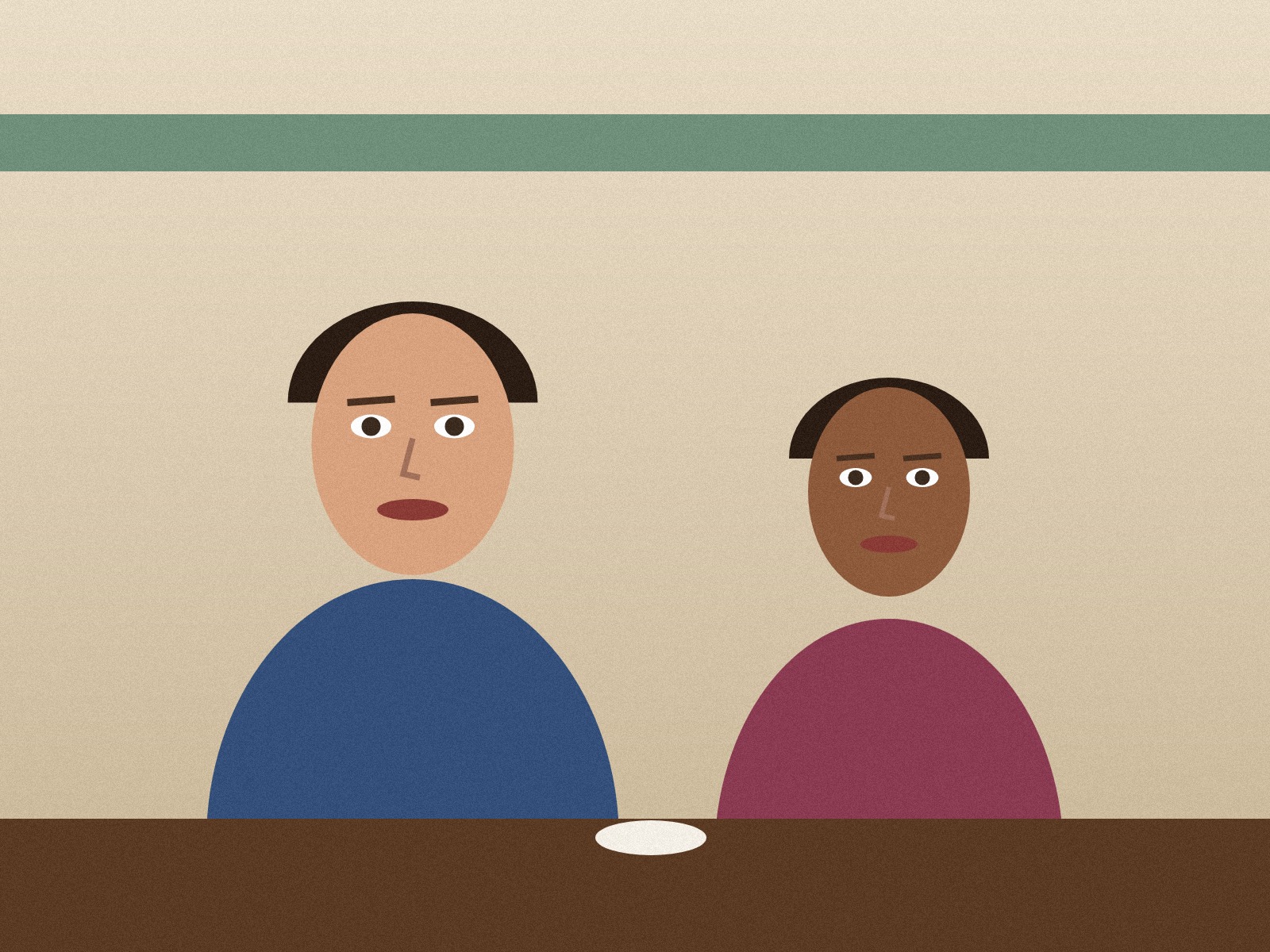 (opens the sample image in a new tab)
1600 × 1200 px · 514 KB JPEG two drawn people at a café table
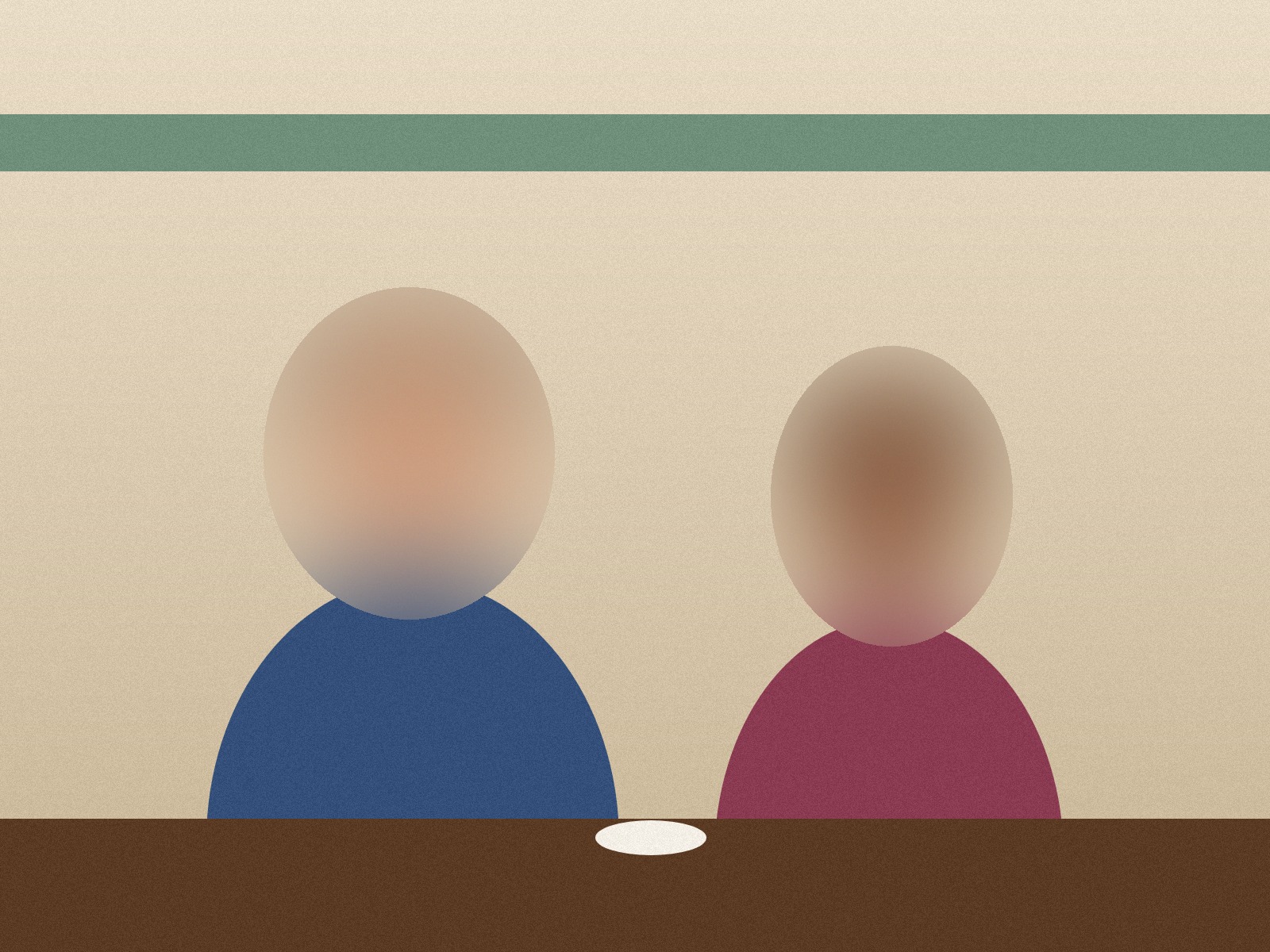 (opens the recorded result in a new tab)
1600 × 1200 px · 469 KB JPEG both faces found automatically, blurred at the default strength
What this tool does
Pick a photo and the page looks for faces in it, in your browser tab: a small face finder (YuNet, 230 KB) runs on your own device and marks each face it finds with a ticked oval, a little larger than the face so hair and ears are covered. The picture shows them blurred straight away; untick any face you want to leave as it is, drag an area to move or resize it, or add an area of your own for anything the finder missed. Choose blur, pixelate or a black box, press the button and download. Small faces are never blurred less than enough to hide them, and a little random noise is added so the blur cannot simply be worked backwards; a black box replaces the pixels outright. The finder only says where faces are — it keeps nothing, and nothing is uploaded. No watermark is added, and the original's EXIF data is removed.
What happens to your file
Your file never leaves your device. This page opens it, changes it and saves the result in your browser; nothing is uploaded, so there is no copy on our servers to delete.
No AI provider sees it either. The page sends us one count that a run happened — no file, no name, no size. Details on the privacy page.
Questions
Does my photo get uploaded?
No. The photo is opened, searched for faces, blurred and saved inside your browser tab; nothing is uploaded and there is no copy on our servers. The face finder is downloaded to your browser once (about 230 KB) and runs there. The only thing the page sends us is a count that a run happened — no picture, no file name, no size, no faces.
What if it misses a face, or marks something that is not a face?
Look at the picture before you download: every face it found is ticked and shown blurred. Untick anything that is not a face. For a face it missed — very small, turned away or partly hidden — press "Add an area" and drag the box over it, or under "More options" choose to find as many faces as possible.
Can a blurred face be un-blurred?
This page makes that hard: a small face is always blurred at least enough to hide it, larger ones get a stronger blur, and random noise is mixed in so the blur cannot be reversed step by step. But no blur or pixelation is a guarantee — someone who knows the person may still recognise their hair or clothes. If it must be impossible, choose "Black box": the pixels are replaced with solid colour.
Does it store or recognise faces?
No. The finder only answers "there is a face in this rectangle". It does not identify anyone, it does not keep the points of the eyes or mouth, and nothing it finds is saved or sent anywhere.
Does it add a watermark?
No visible mark or watermark is added. The file does carry a small metadata record (XMP) saying it was made with filedone.ai with human edits, that faces were located by a detector, and a provenance id. The original's hidden EXIF data — camera model, GPS location, date — is removed, because the picture is re-encoded.
Related tools
- Blur, pixelate or black out part of an imageHide a name, a number, a face or a number plate: drag a box over it and blur it, pixelate it or black it out. Runs in your browser; nothing is uploaded.
- Remove an object or a person from a photoRemove an object or a person from a photo: paint over it and AI fills the gap, while the rest of your photo stays as it was. 3 credits a photo.
- Crop an image online, in your browserCrop a JPG, PNG or WebP by dragging a box or typing exact pixels, with 1:1, 4:5, 16:9 and social media sizes, rotate and flip. Runs in your browser; nothing is uploaded.
- Remove the background from an imageRemove the background from a photo for free, with no upload and no sign-up: the AI runs in your browser. Get a transparent PNG, or white or any colour.
- Compress an image to a target size in KBMake a photo smaller than 20, 50, 100 or 200 KB — or any size you type — without uploading it. Or pick a quality and see the size first.