Organize PDF pages: reorder, rotate, delete
Drop a PDF here
PDF · one file, up to 50 MB
No file to hand?
or paste it here (Ctrl+V)
Nothing is uploaded: it all happens in this browser.
Before and after
The same four pages, in the right order.
 (opens the sample PDF in a new tab)
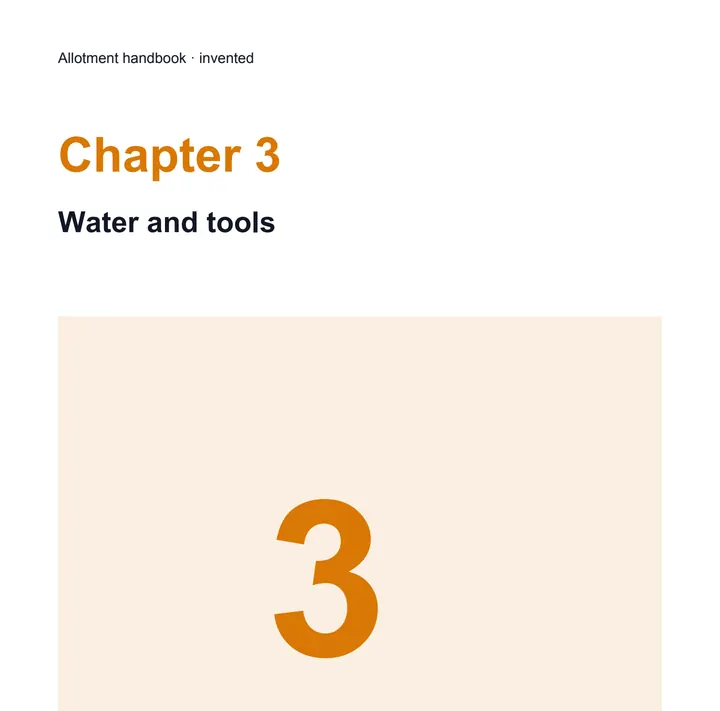
Page 1 of 4: chapter 3, first by mistake.
Chapters 1, 2, 3 and 4,
moved on the page grid.
What this tool does
Choose a PDF of up to 50 MB and 300 pages and its pages appear on a grid. Drag a page to a new place with a mouse, or use the arrows under it on a phone or with a keyboard; turn a page a quarter with its turn button, and remove one with its cross — a removed page stays greyed out on the grid until you put it back. Under More options you can reverse the whole order, or turn every page at once. The new PDF is made after every change. Pages keep their text, pictures and links; the form and the bookmarks stay too, unless a page is removed, when the bookmarks go, since they could point at it. A removed page is gone from the file itself, not hidden. Everything happens in your browser with a PDF library that downloads to your device when you choose the file: nothing is uploaded. There is no AI in it and no mark on your pages; the PDF's metadata records that it was made at filedone.ai, with no AI involved.
What happens to your file
Your file never leaves your device. This page opens it, changes it and saves the result in your browser; nothing is uploaded, so there is no copy on our servers to delete.
No AI provider sees it either. The page sends us one count that a run happened — no file, no name, no size. Details on the privacy page.
Questions
Is my PDF uploaded?
No. The pages are rearranged by your browser, on your device, with pdf-lib, a PDF library downloaded from this site when you choose the file. The only thing we are told is that a run happened — not the file, its name or its pages.
How do I move a page on a phone?
With the arrows under each page: the left arrow moves it one place earlier, the right arrow one place later. Dragging works with a mouse; the arrows also work with a keyboard. Each page shows its new place and the page it was.
Can I undo a change?
Yes. A removed page stays on the grid, greyed out, and its ↺ button puts it back; "Start again" puts every page back where it was, unturned. The file is made again after each change, so the download is always what the grid shows.
What happens to links, bookmarks and form fields?
When pages only move or turn, they all keep working. When a page is removed, it is gone from the file itself — its text, pictures and form fields are not left inside — and the bookmarks are removed too, since they could point at it. Page labels such as i, ii, iii are dropped after a reorder, since they would no longer match.
Is there a limit, or a watermark?
One PDF at a time, up to 50 MB and 300 pages; a PDF with a password has to be unlocked first. No mark is drawn on any page; the PDF's metadata says it was made at filedone.ai with no AI involved.
Related tools
- Rotate PDF pagesTurn every page of a PDF, or only the ones you tap, 90° right, 90° left or upside down, and save it that way for good. It happens on your own device: nothing is uploaded.
- Delete pages from a PDFTap the pages you don't want and download the PDF without them. They are removed from the file itself, not hidden. It happens on your own device: nothing is uploaded.
- Merge PDF files into oneCombine up to 20 PDFs into one, in the order you choose, and take only the pages you need from each. It happens on your own device: your PDFs are never uploaded.
- Split a PDF into separate filesSplit a PDF into single pages, into files of a few pages each, or by page ranges like 1-3, 5, 8-10. It happens on your own device: the PDF is never uploaded.
Pages
Guides and free sample files
- Sample multi-page scanned PDF · free sample file