Make a scanned PDF searchable — OCR, free, no upload
Make a scanned PDF searchable and selectable, free and in your browser: the pages look the same, with an invisible text layer added. Our one-page sample scan grew by under 1%.
Drop a PDF here
PDF · one file, up to 50 MB
No file to hand?
or paste it here (Ctrl+V)
Nothing is uploaded: it all happens in this browser.
How to make a scanned PDF searchable
- Choose the scanned PDF, up to 50 MB. It opens in this browser tab and is never uploaded.
- Pick the language it is printed in. Up to 50 pages are read in one run; pages that already have text are left as they are.
- Download the searchable PDF, then search it with Ctrl+F (⌘+F on a Mac), or select and copy its words in any PDF reader.
Before and after
The same scan, now searchable.
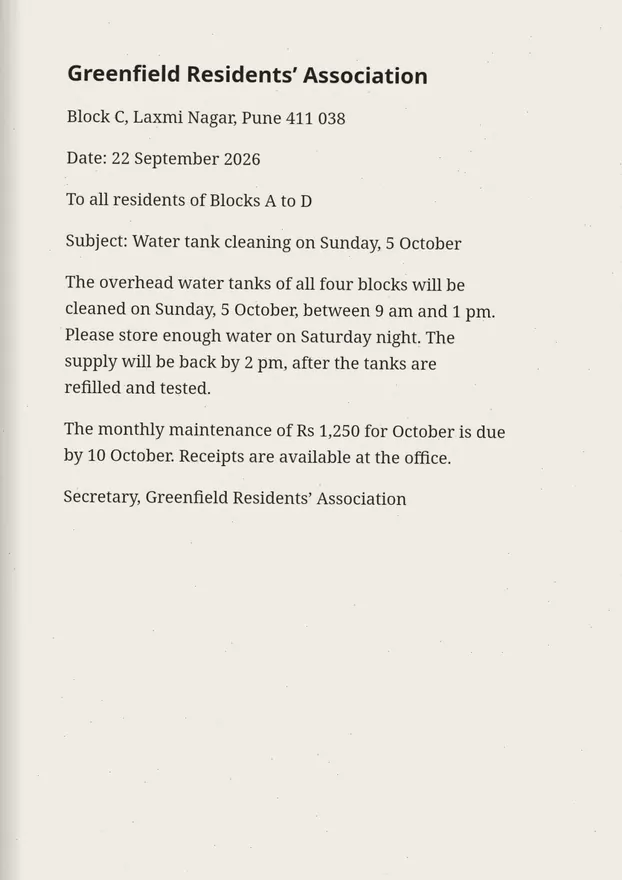 (opens the sample PDF in a new tab)
The invented scanned letter
The same two pages, looking the same,
with every word findable and selectable.
What this tool does
Choose a scanned PDF of up to 50 MB — one whose pages are pictures, from a scanner or a phone app, so you cannot search it or select a word. Each page is drawn in your browser and read by Tesseract, an open-source OCR engine, in the language you pick: English, Hindi, Marathi, Bengali, Tamil or Telugu (an Indian language is read together with English). The words it reads are written back into the PDF as an invisible layer, each word over its own place on the page, so the pages look exactly as they did but you can now search them, select words and copy them. Up to 50 pages are read in one run; pages that already have text are left as they are. Everything happens in your browser: the PDF is never uploaded.
Pages without a text layer are read with an AI OCR model, which can misread a word — check those pages against the original. Nothing else is generated, and your PDF is not altered.
What it did to our sample scans
The file barely grows, because only words are added, not pictures: the page images are kept exactly, and each word read is written over its own place as invisible text.
| Sample scan | Before | Searchable PDF | Words added |
|---|---|---|---|
| Scanned page, 1 page, 200 dpi | 301,060 bytes | 309,706 bytes | 213 |
| Scanned report, 3 pages, 150 dpi | 377,350 bytes | 393,155 bytes | 551 |
How to tell whether a PDF is already searchable
Press Ctrl+F (⌘+F on a Mac) and search for a word you can see on the page, or try to select one word. If the search finds nothing and you cannot select single words, the pages are pictures and this tool is the one you need. If a PDF already has text, this page leaves those pages as they are.
Will search find every word?
Most of them, on a clear scan; OCR is never perfect. A word read wrongly, from a smudge, a stamp or handwriting, is in the layer under the wrong spelling, so a search for it finds nothing. A sharper, straighter scan reads better. To see exactly what was read, use Scanned PDF to text, which shows the words so you can correct them.
What happens to your file
Your file never leaves your device. This page opens it, changes it and saves the result in your browser; nothing is uploaded, so there is no copy on our servers to delete.
No AI provider sees it either. The page sends us one count that a run happened — no file, no name, no size. Details on the privacy page.
Questions
Will my PDF look any different?
No. The words are added as an invisible layer, each one over the place it was printed, and nothing is drawn: the pages look exactly as they did. Search, select or copy in any PDF reader, and you are using that layer.
Is my PDF uploaded?
No. The PDF is opened, read and rewritten in your browser. The OCR engine and the language files come from this site the first time you use them; the file itself never leaves your device.
Which languages can it read?
English, Hindi, Marathi, Bengali, Tamil and Telugu. An Indian language is read together with English by default, because most Indian documents mix the two; you can turn that off under More options.
How many pages can it do, and how long does it take?
Up to 50 pages in one run; choose which ones under More options (for example 1-3, 7). A page takes a few seconds on a laptop and longer on a phone, since the reading is done on your device. Pages that already have text are left as they are.
Will the search find every word?
Most of them, on a clear scan. OCR can misread a word — a smudge, a stamp or handwriting — and a word read wrongly is found under the wrong spelling. A sharper, straighter scan reads better. To get the text out to edit, use Scanned PDF to text.
Related tools
- Scanned PDF to text — OCR a scan into editable textRead the text out of a scanned PDF with OCR, page by page, free in your browser: English, Hindi, Marathi, Bengali, Tamil, Telugu. Handwritten pages read by AI for 1 credit a page.
- Image to text — copy the text from a photo, scan or screenshotTurn a photo, scan or screenshot into text you can copy and edit, in English, Hindi, Marathi, Bengali, Tamil or Telugu. Free and on your device; handwriting read by AI for 1 credit.
- Compress a PDF to a size in KBReduce a PDF's size for free — as small as it goes, or under 100 KB, 200 KB, 500 KB or 1 MB for a portal. Nothing is uploaded; text stays selectable.
- Merge PDF files into oneCombine up to 20 PDFs into one, in the order you choose, and take only the pages you need from each. It happens on your own device: your PDFs are never uploaded.
Tables & text out of a document
Guides, sample files and comparisons
- Can you edit the text in a scanned PDF? · guide
- Sample scanned PDF for OCR testing · free sample file
- Sample multi-page scanned PDF · free sample file
- filedone vs Sejda · comparison
- filedone vs iLovePDF · comparison
- filedone vs Smallpdf · comparison